Skip to content
Online Photo Prints
← Photo stories & tips

Photo prints, canvas or fine art: which feels right?

Compare everyday Photo Prints, stretched Canvas Prints and Hahnemühle Bamboo Fine Art Prints by surface, display style and the photograph you want to enjoy.
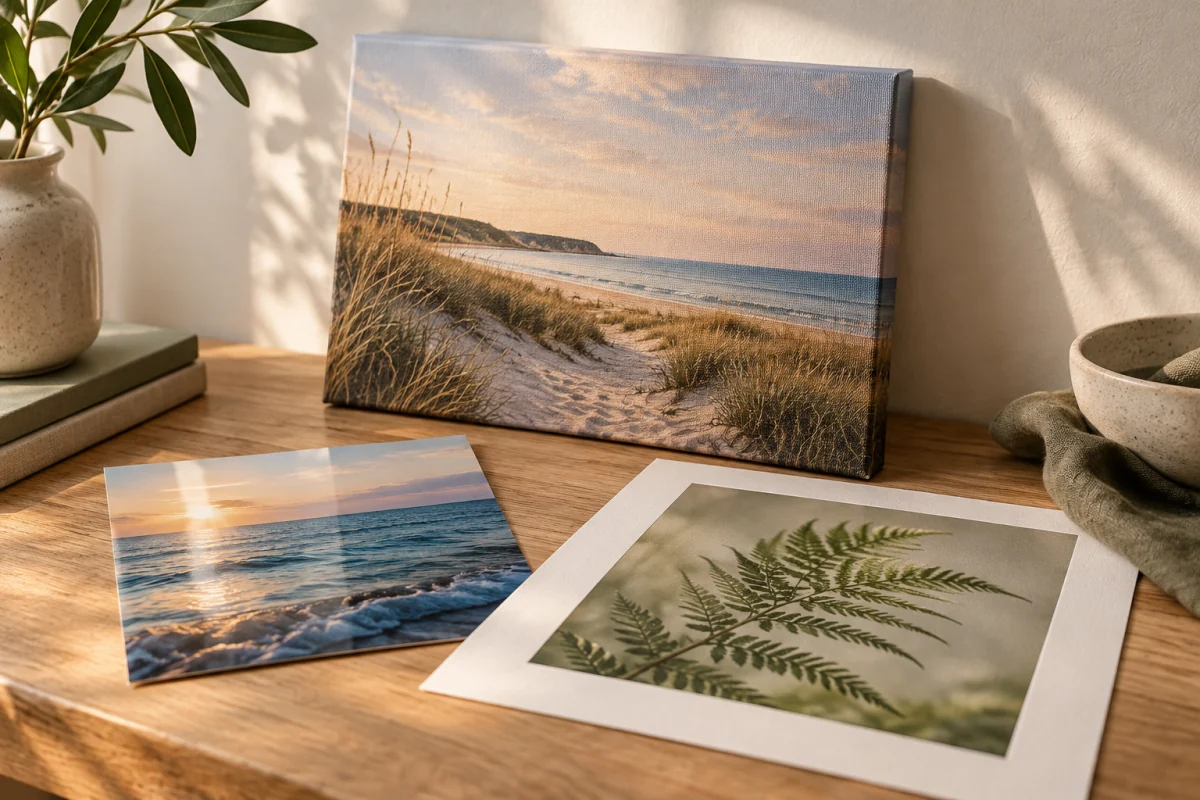
A woven canvas print, a glossy sea photograph and a matte fern print arranged on a warm wooden table.

The same photograph can feel quite different as a small glossy print, a stretched canvas or a textured fine art print. There is no single best choice for every image. Think about where it will live, how closely you will look at it and whether you want to add your own frame.

Here is a practical way to choose among the three products we print at Online Photo Prints.

Photo Prints: flexible, familiar and easy to share

Choose Photo Prints for albums, small frames, photo walls and extra copies for family. They are an easy starting point when you want to print a collection rather than one statement photograph. Choose from the available sizes and paper finishes on the product page.

A glossy surface has a more reflective look; a less reflective finish may suit a print you will handle or view in changing light. Neither finish changes whether your original image is in focus. Start with a good original and a considered crop, then choose the surface you enjoy.

Canvas Prints: a photograph that becomes part of the room

Our Canvas Prints arrive stretched on a wooden frame, with a textured surface and finished sides. They work particularly well when you want a photograph to stand on its own without choosing a separate picture frame. Consider a family portrait, a wide landscape or a place that matters to you.

The edge is part of the design. Reflected edge extends a mirrored strip of the photograph around the sides. Full wrap continues the image around the frame, using some of the picture for those sides. White or black edges give the photograph a solid-colour surround. Keep faces and important details away from the edges, especially for Full wrap.

Use the product page’s edge illustrations to compare the styles, and review your crop in the editor. The flat print preview is not a three-dimensional proof of the finished canvas sides.

Fine Art Prints: paper with a presence of its own

Our current fine art paper is Hahnemühle Bamboo. Its manufacturer describes a natural-white, matte paper made from 90% bamboo fibre and 10% cotton, at 290 gsm. That warm paper base and tactile surface can be especially appealing for gentle landscapes, portraits and black-and-white photographs.

A natural-white paper is part of the finished look; it is not the same as a bright, backlit screen. Choose it because you like that character, rather than expecting every paper to look identical. Fine art prints are supplied unframed. Plan the frame and mount as part of your display.

Three questions that make the choice easier

  1. Where is it going? An album points towards Photo Prints; a substantial wall piece may suit canvas; a carefully framed image may suit Bamboo.
  2. What do you want to notice? The surface and presentation should support the image. A quiet, textured print and a reflective glossy print give different impressions.
  3. How large can the file comfortably print? Review the editor’s Resolution warning and your crop. Choosing a premium material cannot restore missing image detail.

We profile our monitors and printers, but your display and viewing light may differ. If a particular colour is critical, contact us before ordering so we can discuss the result you need.

Choose the print that suits your photograph.

Explore Photo Prints, Canvas Prints or Bamboo Fine Art Prints. Unsure? Tell us what you plan to print and where it will be displayed.

Paper specifications: Hahnemühle Bamboo manufacturer’s data sheet (PDF).
A little more inspiration

Find your print

What would you like to print?

Choose a print style. You’ll pick your size and upload your photos next.

Help
A little guidance

Here to help.

Open a topic for quick help without leaving this page. Full guides and support are available below.

Choosing your printsA good place to start

Choose your product before uploading: Photo Prints for albums and frames, Canvas Prints for a stretched wall print, or Fine Art Prints on Hahnemühle Bamboo paper.

Choose a size and paper or canvas edge style on its product page. You can refine those choices and the crop in the editor. To print the same photo on a different product, start from that product’s page.

Full guide: Choosing your prints
Uploading your photos
  1. Choose your product, size and paper or edge style, then select Upload Your Photos and sign in if prompted.
  2. Start a new gallery or choose a compatible existing gallery. Add up to 50 photos per upload.
  3. Keep the window open while the files upload and process. Select Done when offered; the site then checks that your gallery is ready.

If processing is unfinished, use Try Again to check the same upload. Check your Photo Library before uploading the same files again. Uploading alone does not place an order.

Already in a gallery? Add More Photos opens the uploader right there. Choose the new photos’ size and paper or canvas edge style; existing photos stay unchanged. Use Check again for an unfinished upload, or Back to editor and check before repeating it.

Full guide: Uploading your photos
Editing your photos
  1. Choose each photo’s print size, paper or edge style, and quantity.
  2. Drag and resize the crop box to keep the part you want. Use the rotate and flip controls to change orientation.
  3. Use Adjust to open the larger editor. Crop changes the selected picture area, Finetune adjusts light and colour, and Filter tries a ready-made look.

Zoom +/− lets you look closer without changing the crop or print size. Undo/Redo steps through available edits. Revert resets them and can reset the crop; use Close without applying to keep your saved gallery as it was. Choose Apply Changes to save, or Close (×) to leave without applying. Wait for the save, then check Preview.

For several photos, select their checkboxes and choose Adjust Selected. Quantity is per photo: 2 + 3 + 0 means 5 prints, with the zero-quantity photo left out.

Resolution warning? Your photo may look blurry or pixelated at the selected size. Choose a smaller size or upload a higher-resolution original for the best results. You can still order it as it is.

Changes save automatically. Wait for pending saves to finish and resolve any error before leaving or clearing browser data. Use Add/Update Prints to send the accepted selection to your cart.

Full guide: Editing your photos
Previewing your prints

Select Preview beneath a photo for a closer look, or open Print Preview Gallery to review the gallery. Check crops, orientation, sizes, finishes and quantities.

Return to Print Editor to make changes. If a preview is out of date, let saves finish, then use Refresh previews or the retry control shown.

Previews are not life-size or exact colour proofs. Canvas previews are flat and do not show the finished sides. A clear-looking preview does not guarantee a sharp large print; review any Resolution warning in the editor.

Full guide: Previewing your prints
Galleries & reorders

Open Photo Library to find your galleries. Filter by product or change the sort order, then open a gallery to edit its photos. Use Edit Gallery Title beside its title to rename it, or Add More Photos inside the editor to choose a size and paper or canvas edge style, then upload straight into that gallery. Wait for processing and Done; existing photos stay unchanged. Use Check again if readiness is unconfirmed, and check the gallery before uploading the same files again.

When available, Reorder restores only that gallery’s previously purchased prints, crops and quantities. Review the confirmation and current prices before adding the reorder to your cart. Your current gallery settings stay unchanged.

Read deletion prompts carefully. Deleting a gallery does not cancel an existing order. Keep your original photo files.

Full guide: Galleries & reorders
Cart, checkout & delivery
  1. Check your crops and quantities, then use Add/Update Prints in the editor and wait for confirmation.
  2. Review the cart’s sizes, finishes and quantities. Cart rows group matching prints, so one row may contain several photos.
  3. Apply a promotion code if you have one and check the updated total.
  4. Proceed to checkout, confirm your Canadian delivery address, shipping option and final total, then complete the required agreement and payment steps.

We accept orders for Canadian delivery addresses only. If a payment result is unclear, check My Account → Orders before trying again.

Full guide: Cart, checkout & delivery

Use the account icon or My Account to sign in, create an account, view orders or update your details. Use the same account that uploaded your photos.

If you cannot sign in, use the password-reset link and check your email, including spam or junk. Never send passwords or reset links to support.

Changes save automatically, but wait for uploads and pending saves to finish before clearing browser data. Sign out on shared devices and keep your original files. Updating an account address does not change an order already placed; contact us if an existing order needs attention.

Full guide: Your account & privacy
Something not working?
  1. Read the message and note any support reference before refreshing or clearing browser data.
  2. For an unfinished upload, keep the original tab open and use Try Again. Check Photo Library before starting another upload.
  3. For a failed save or another-tab conflict, follow the displayed retry or reload instruction. Check the current settings before reapplying changes.
  4. For a stale preview, wait for saves to finish and use Refresh previews or the retry control.

Still stuck? Contact us with the gallery title or order number, what happened, your device and browser, and any support reference. Do not send passwords, payment-card details or private sign-in links.

Full guide: Something not working?
Search all help

Still need a hand? Contact us